



Cover image for Ambisius Work Order Tracking App Template.
The Job Was Logged. Somewhere.
When jobs pile up, manual tracking fails — and customers pay the price.
A customer drops off their device on Monday. You write it down — a sticky note, a notebook, maybe a WhatsApp message to yourself. By Thursday, three more jobs have come in. The notebook is buried. The customer calls asking for an update. You scramble to find the record.
When you're running a repair shop or service business, jobs pile up fast. Notebooks, spreadsheets, and WhatsApp threads don't scale — jobs fall through the cracks, deadlines get missed, and customers lose trust.
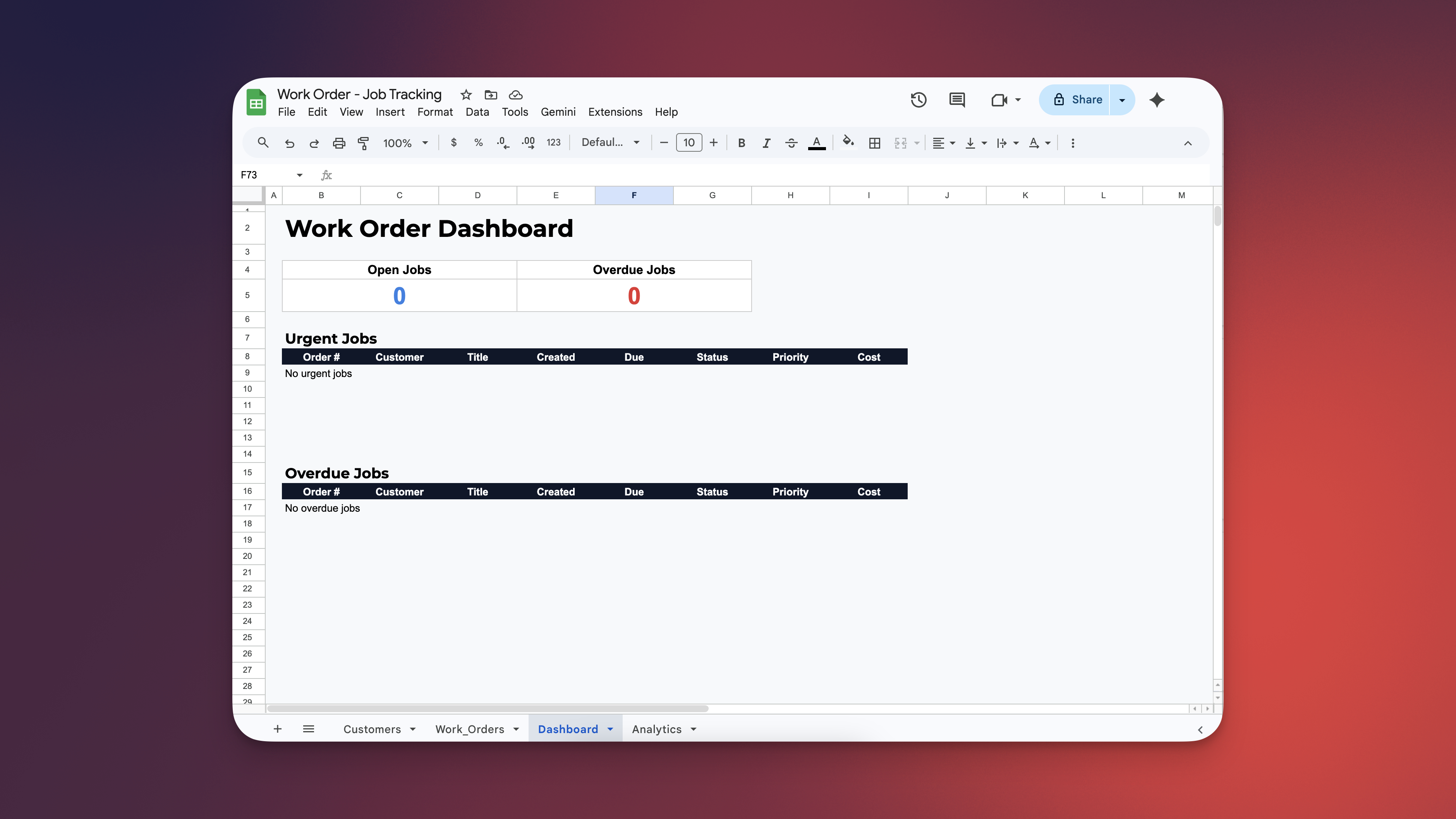
Managing work order and job tracking using spreadsheets - the process is chaotic.
-
Jobs get lost in the noiseSticky notes and notebooks can't keep up when multiple jobs arrive at once. A missed note means a missed job.
-
Deadlines pass unnoticedWithout automatic alerts, due dates come and go silently — and you only find out when the customer calls angry.
-
No single source of truthWhen job records live in different places — notebooks, spreadsheets, chat threads — no one knows the real picture.
-
Urgent jobs don't surface automaticallyYou have to manually scan through records to find what's urgent — time you don't have when the shop is busy.
-
Customers lose trustNothing erodes confidence faster than a business that can't tell a customer where their job is.
Built for Any Business That Manages Jobs for Customers
If you open jobs, work on them, and close them — this template works for you.
No More Lost Jobs. Here's How It Works.
From the moment a job is logged to the moment it's done, the app handles the tracking for you.
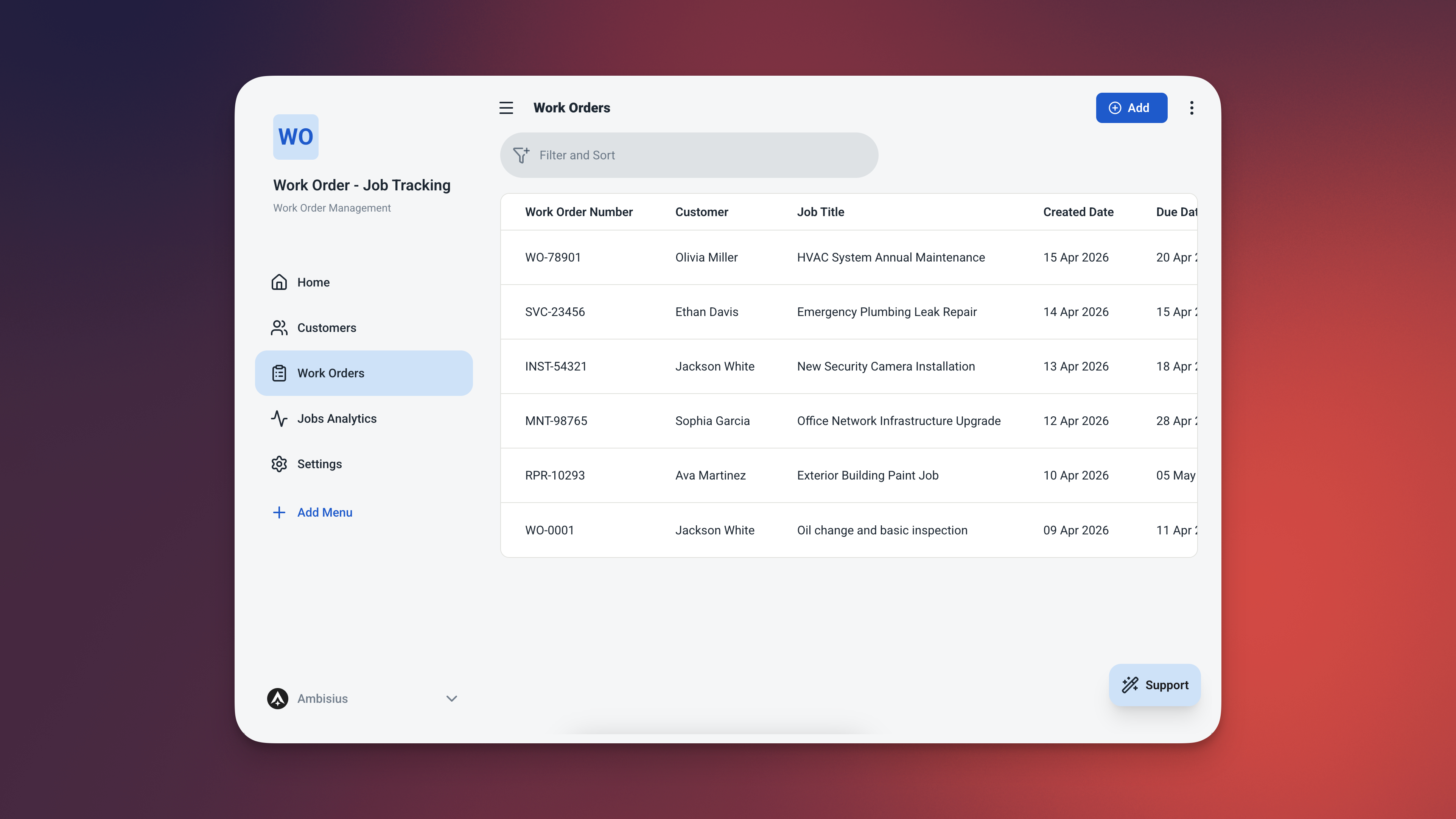
Every job in one table — with job number, status, priority, days open, and overdue flag always visible.
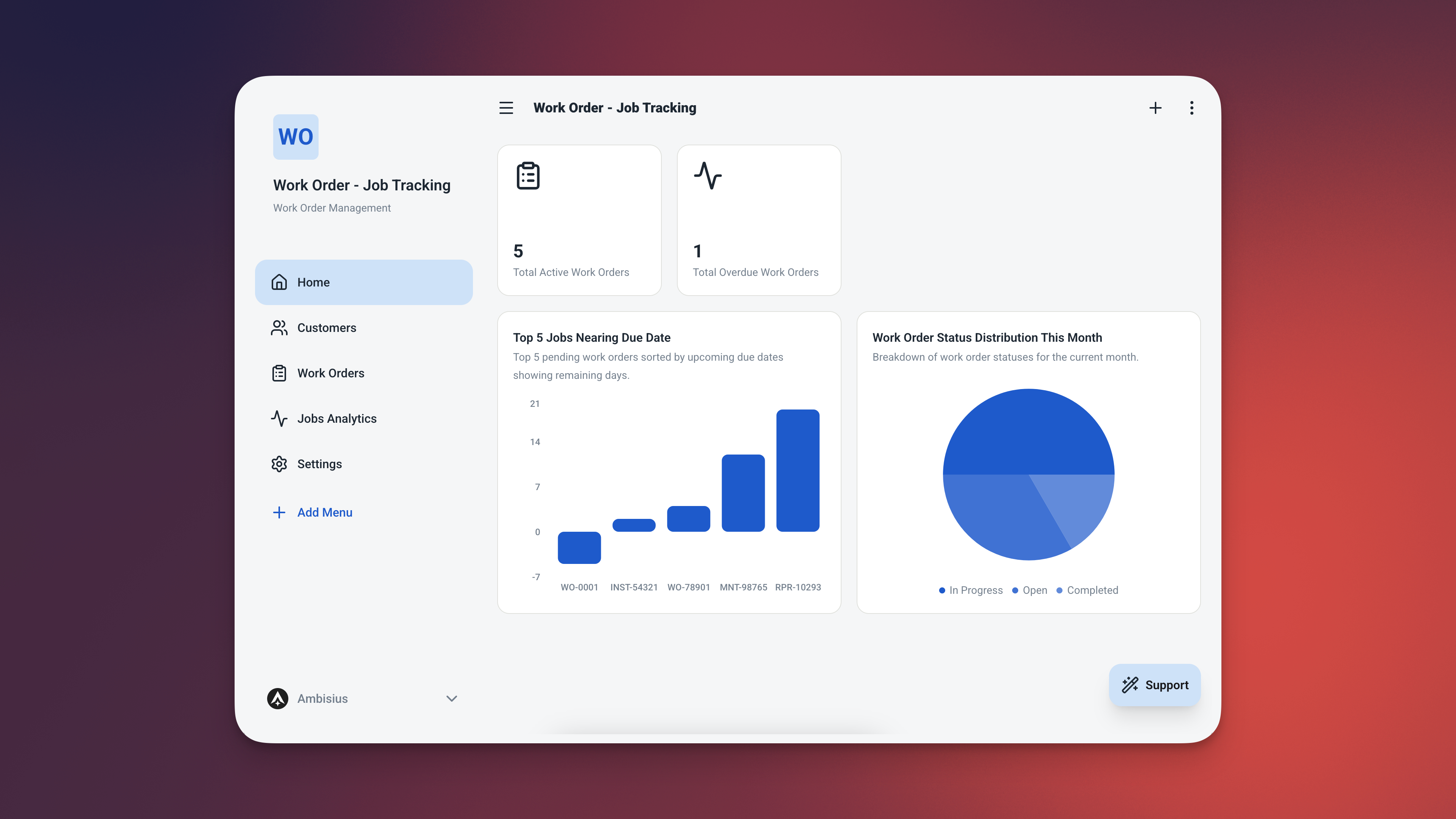
The dashboard puts your most urgent and overdue jobs front and centre — every time you open the app.
The Features That Keep Every Job on Track
Four smart automations that replace manual checking entirely.
🔢 Auto-Generated Job Numbers
Every work order gets a unique, sequential reference number the moment it's saved — WO-0001, WO-0002, WO-0003, and so on. No duplicates. No manual numbering. Every job has a clear identifier you can reference with your customer, your team, or your records.
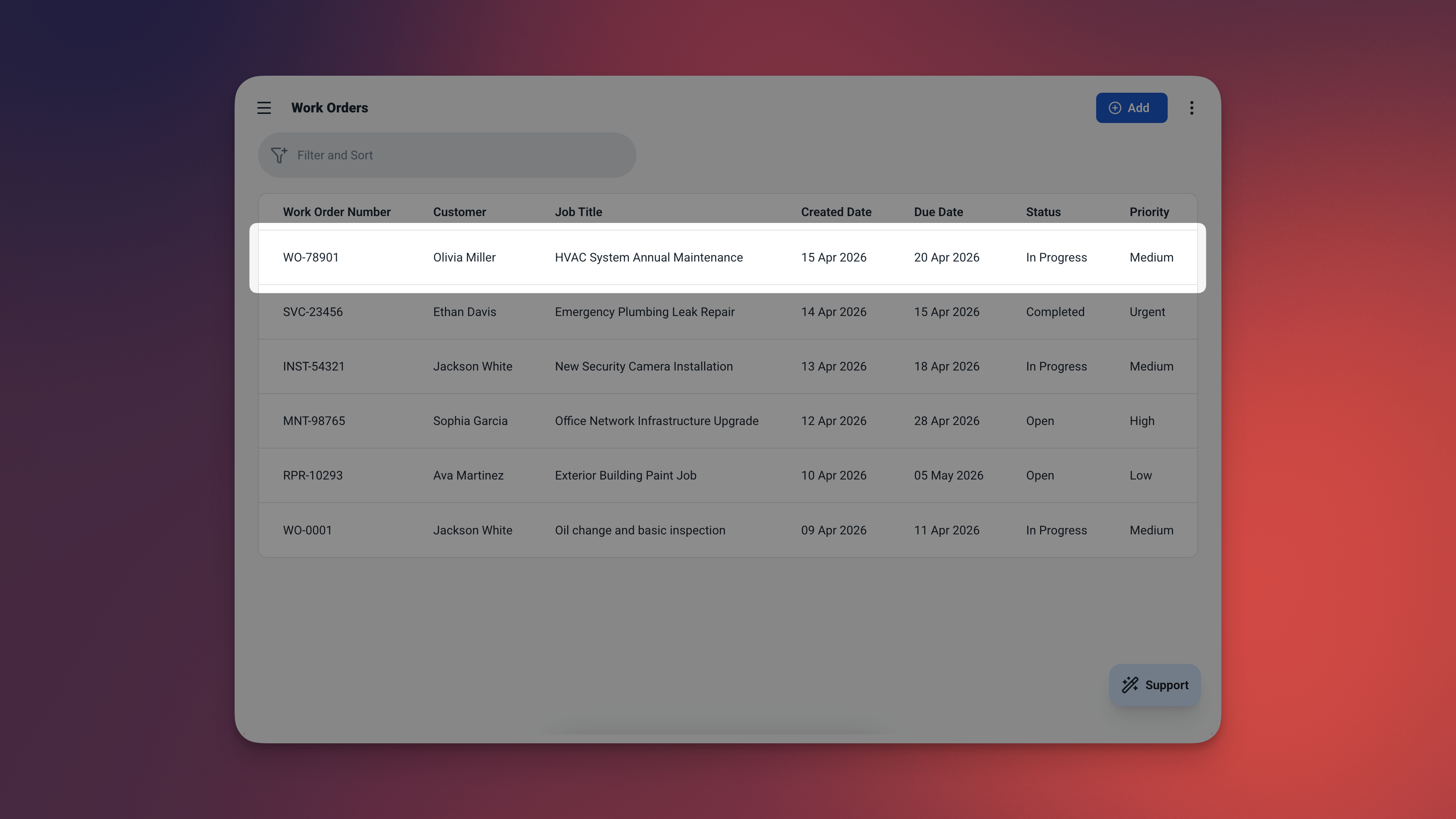
WO-0042 — assigned automatically the moment the record is saved. No action needed from your team.
📅 Days Open — Always Current
The app calculates how many days each job has been open — from the created date to today — and updates it automatically every time you view the record. A job logged 12 days ago shows 12. Tomorrow it shows 13. No manual entry. No formulas to break.
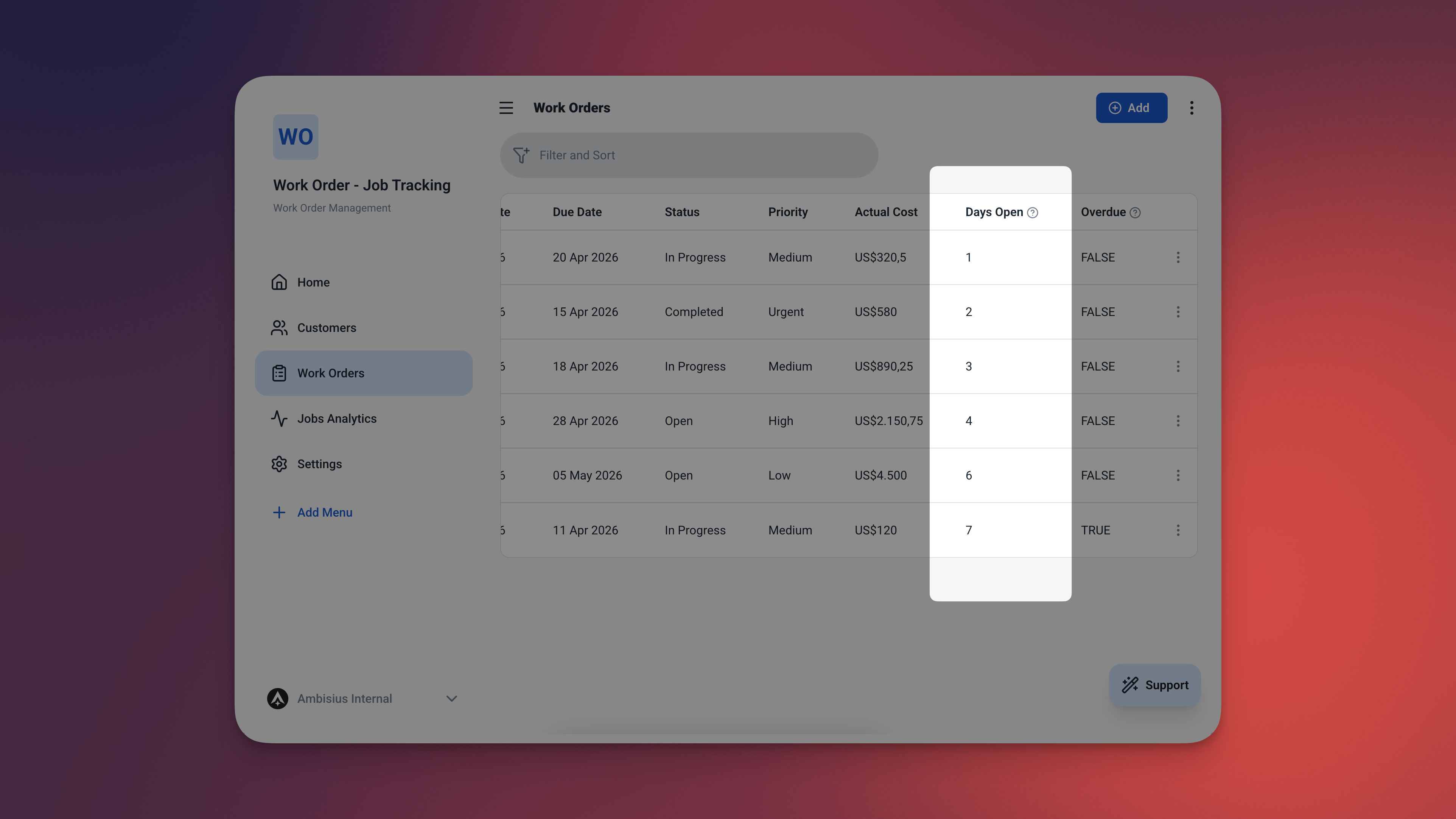
Days open updates itself every day — always showing you exactly how long each job has been waiting.
🚨 Overdue Detection — Automatic Flagging
When a job's due date passes and the status is still Open or In Progress, the app marks it as overdue — instantly and automatically. No need to scan through dates manually. The app knows — and it tells you.
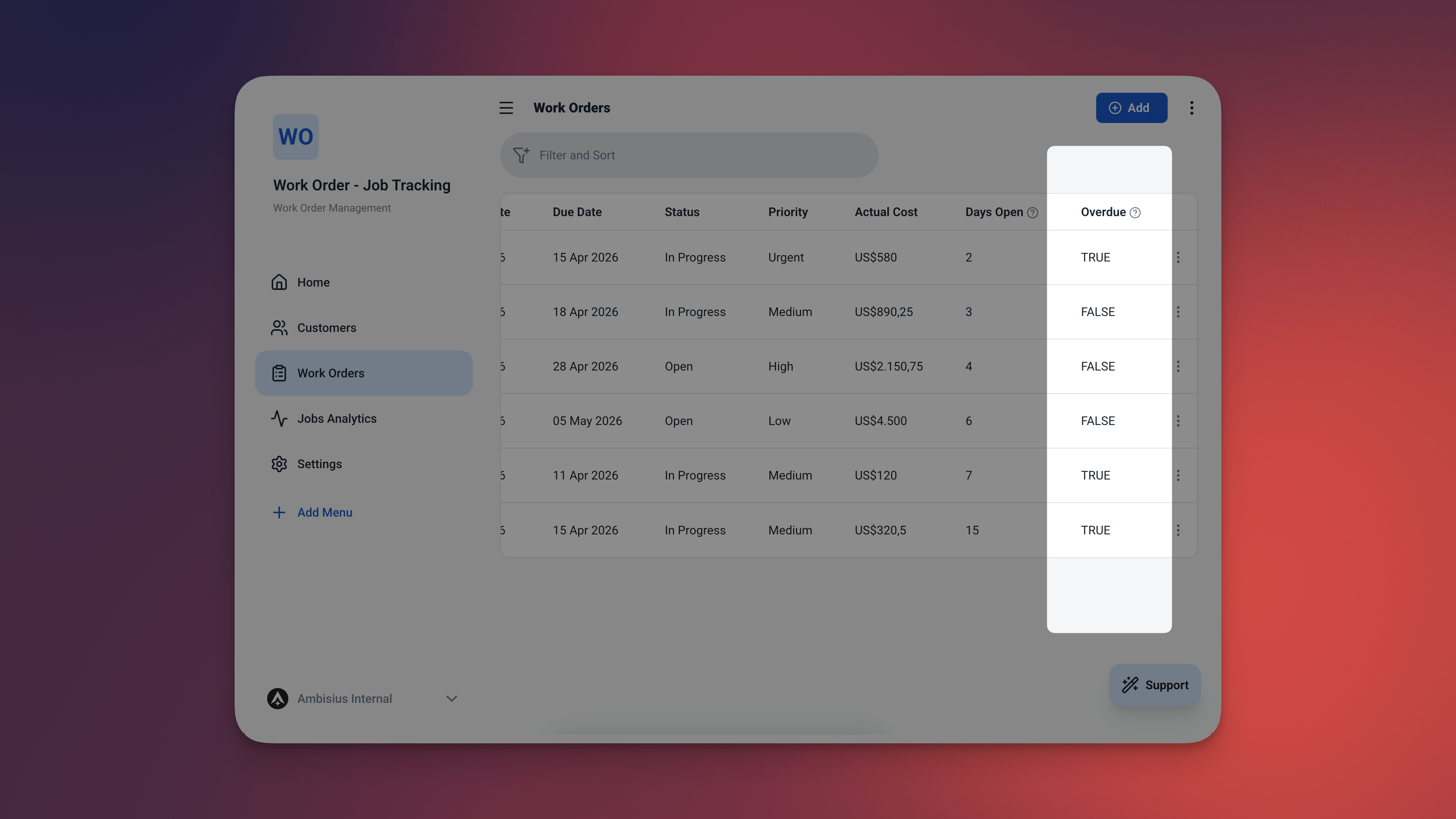
Overdue jobs are flagged the moment their due date passes — no manual review required.
When you mark a job as Completed, the overdue flag clears automatically — a finished job is never shown as overdue, even if the due date has passed.
🏷️ Priority & Status — Full Job Context at a Glance
Every work order carries two pieces of context. Set priority when the job comes in. Update status as work progresses. The dashboard and analytics reflect every change — in real time.
| Field | Options | Default |
|---|---|---|
| Status | Open · In Progress · Completed · Cancelled | Open |
| Priority | Low · Medium · High · Urgent | Medium |
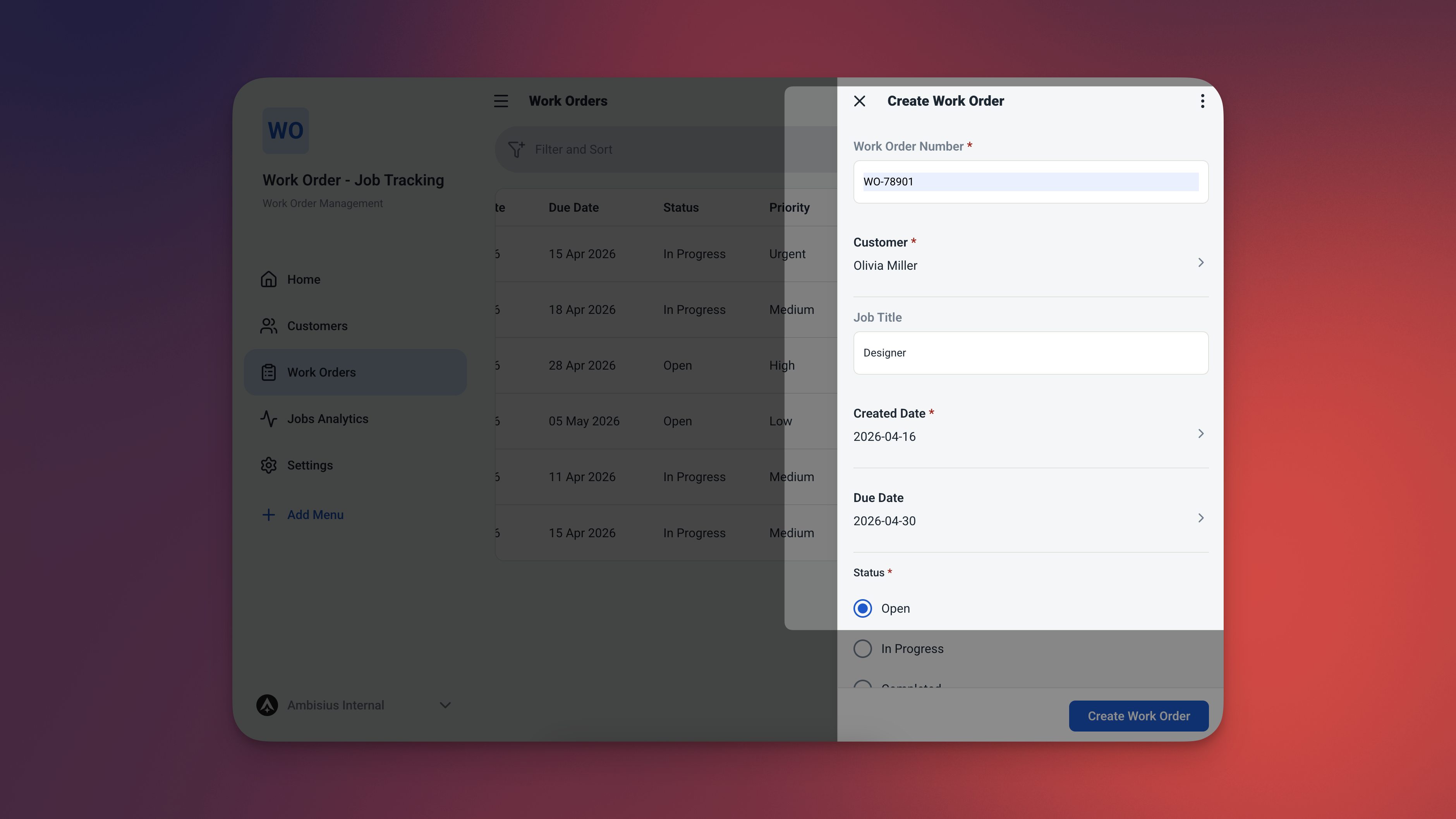
Set priority and status on every job — the dashboard and analytics update instantly when either changes.
2 Tables — Everything Pre-Configured
Activate the template and everything is already set up — two tables, connected and ready.
Customers
A simple record for every customer whose jobs you manage.
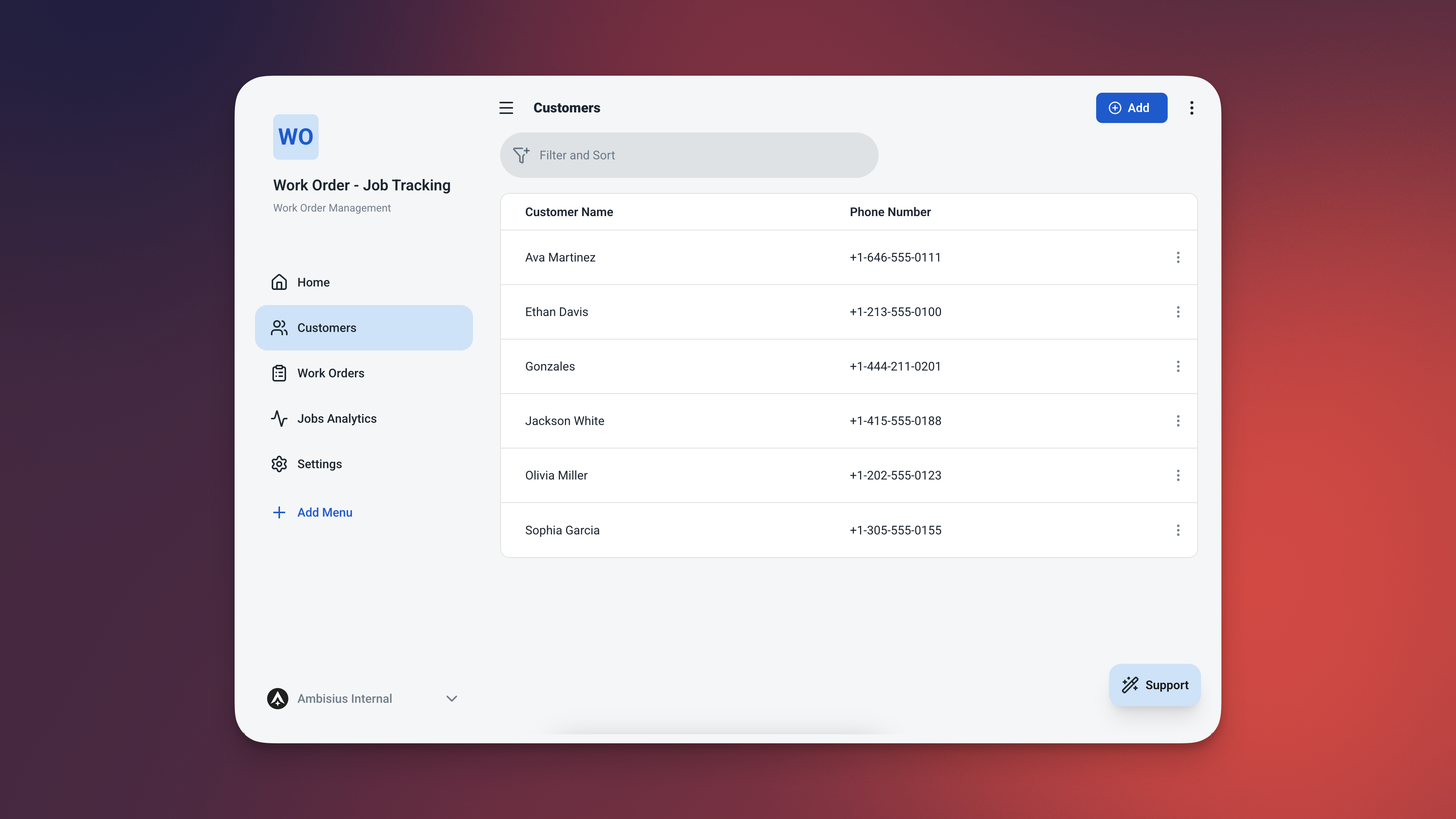
The Customers table — simple, clean, and linked directly to every work order.
| Field | What It Stores |
|---|---|
| Name | Customer's full name |
| Phone | Contact number |
Work Orders
The core of the app. Every field you need to manage a job from start to finish — including two fields that calculate themselves.
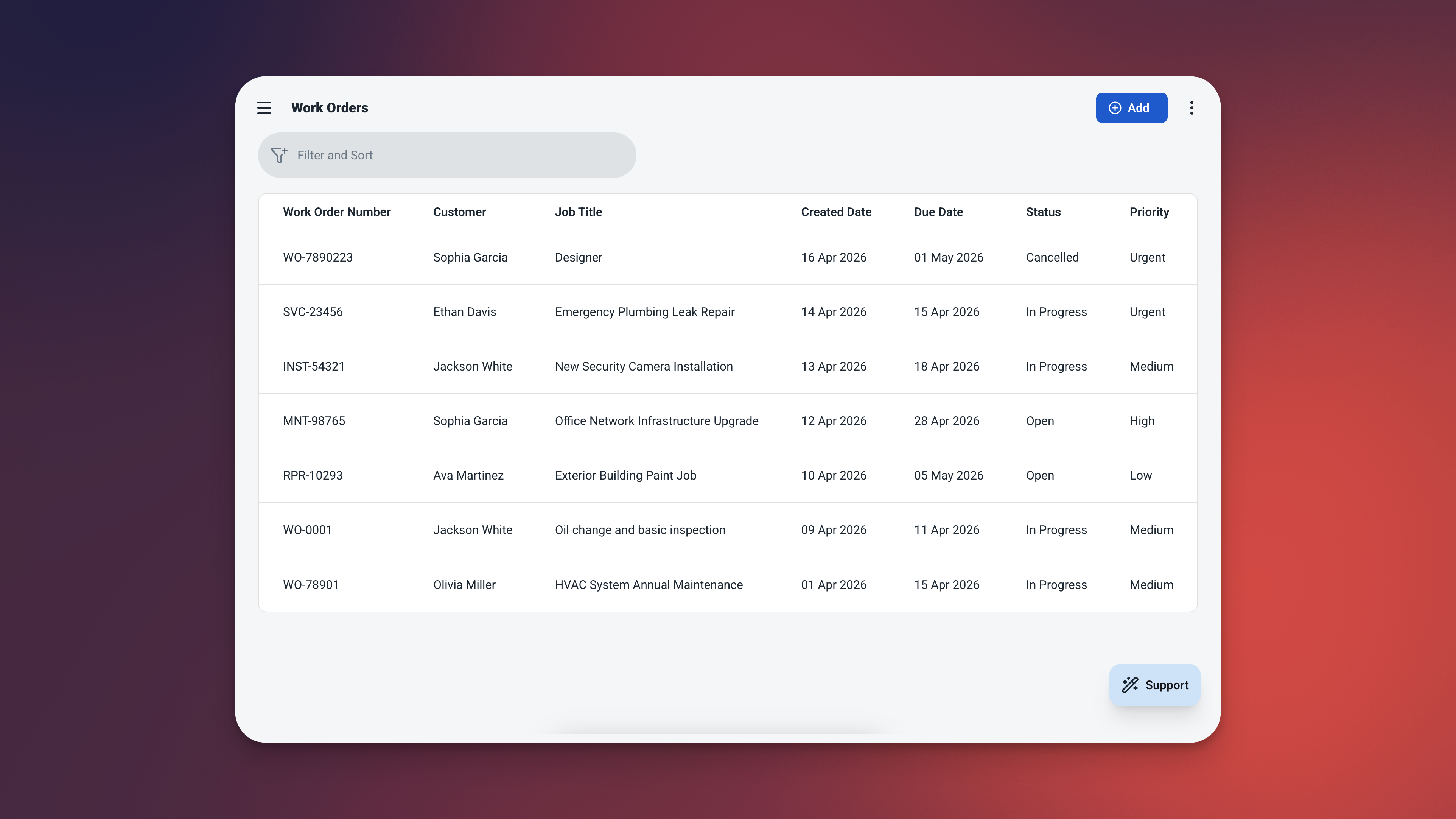
The Work Orders table — every field pre-configured, with auto-calculated Days Open and Is Overdue columns.
| Field | What It Stores |
|---|---|
| Order Number | Auto-generated — WO-0001, WO-0002, … |
| Customer | Linked from Customers table |
| Title | Short description of the job |
| Created Date | Defaults to today — no manual entry needed |
| Due Date | When the job needs to be completed |
| Status | Open / In Progress / Completed / Cancelled |
| Priority | Low / Medium / High / Urgent |
| Actual Cost | What was charged for the completed job |
| Days Open | Auto-calculated — today minus created date |
| Is Overdue | Auto-flagged — true when past due and not completed |
Days Open and Is Overdue are calculated automatically — they update themselves every day without any input from your team.
Days Open = Today − Created Date
Is Overdue = Due Date < Today AND Status ≠ Completed AND Status ≠ Cancelled
Always Know What Needs Attention
Two views — one for today's priorities, one for the bigger picture.
Dashboard — Your Live Job Overview
Four widgets. Zero manual filtering. Open the app and your priorities are already laid out.
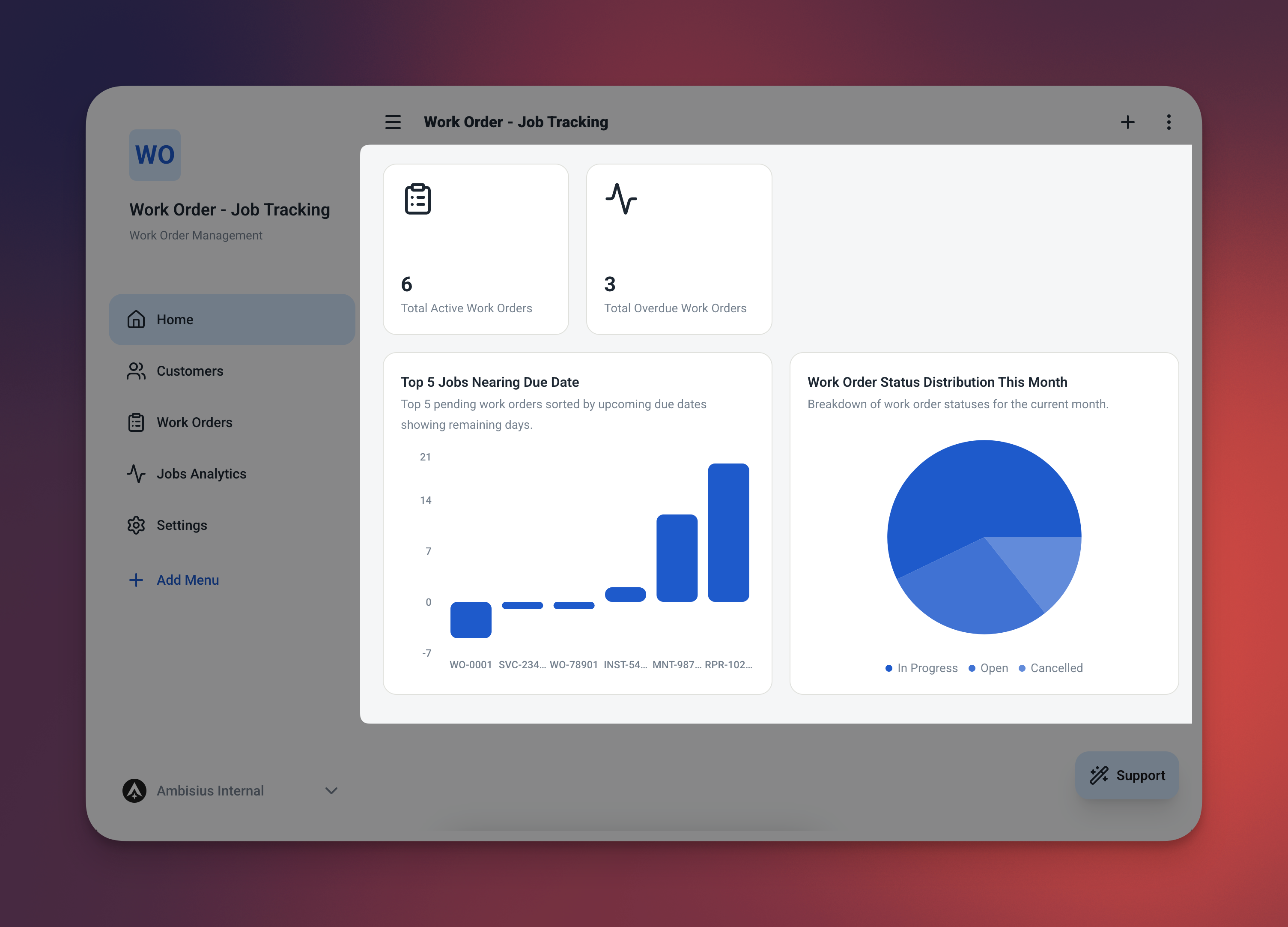
Four widgets — two metric cards at the top, two live job tables below. No filtering, no searching.
| Widget | What It Shows |
|---|---|
| 🔢 Open Jobs | Total count of jobs with status Open or In Progress |
| ⚠️ Overdue Jobs | Total count of jobs flagged as overdue |
| 🚨 Urgent Jobs Table | All Urgent jobs not yet completed — sorted by due date |
| 📋 Overdue Jobs Table | All overdue jobs — sorted by due date |
Analytics — The Bigger Picture
Step back and see how your business is performing over time. Filter by date range, status, or priority to drill into exactly what you need.
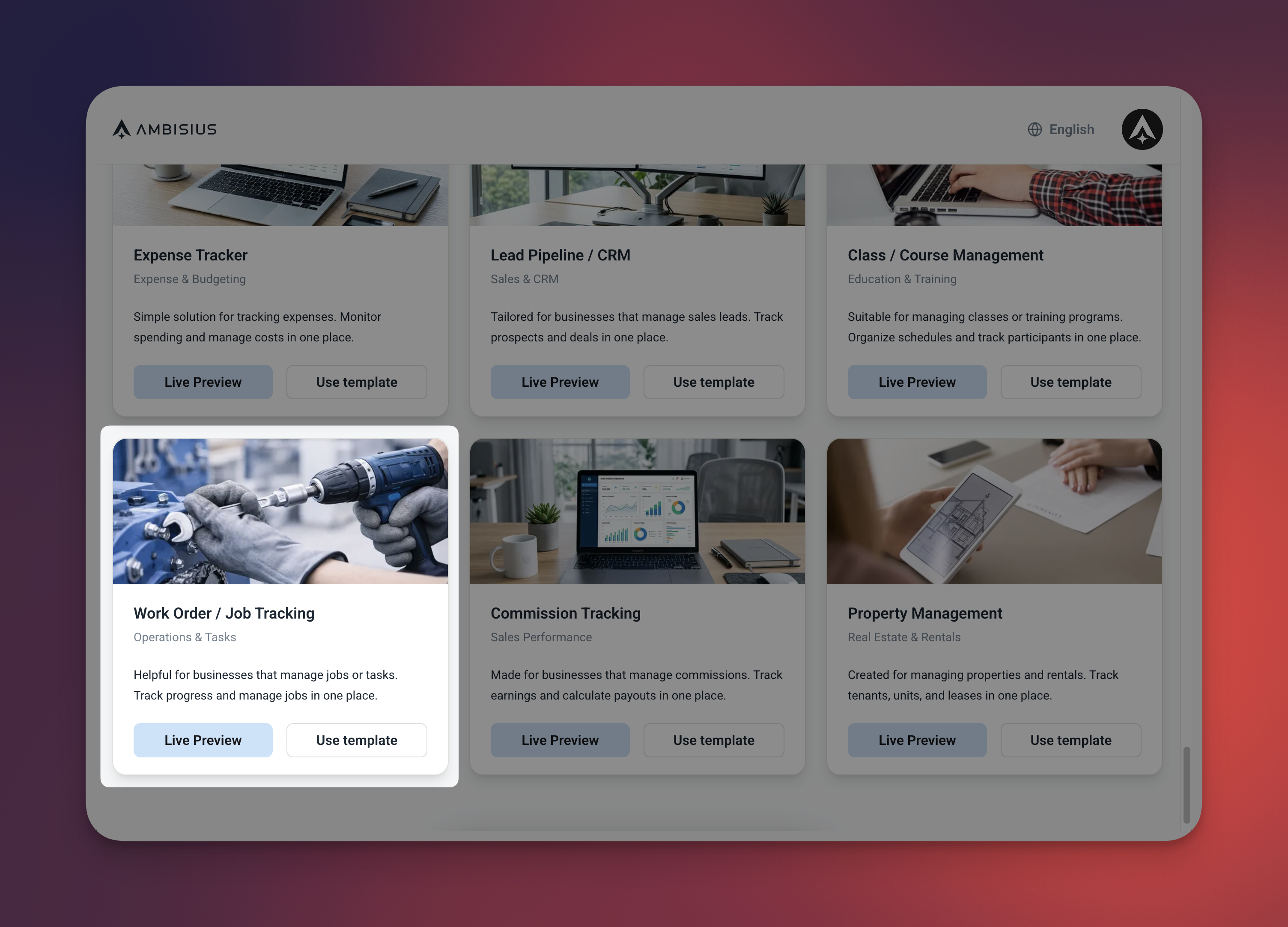
The analytics page — job trends, status breakdown, priority distribution, and total revenue from completed jobs.
| Chart | What It Shows |
|---|---|
| 📈 Jobs Over Time | Daily job volume — spot your busy periods |
| 🥧 Jobs by Status | Proportion of Open, In Progress, Completed, Cancelled |
| 📊 Jobs by Priority | How your workload is distributed across priority levels |
| 💰 Total Revenue | Sum of actual cost from all Completed jobs |
Ready in Minutes — No Setup Required
Three steps and you're live.
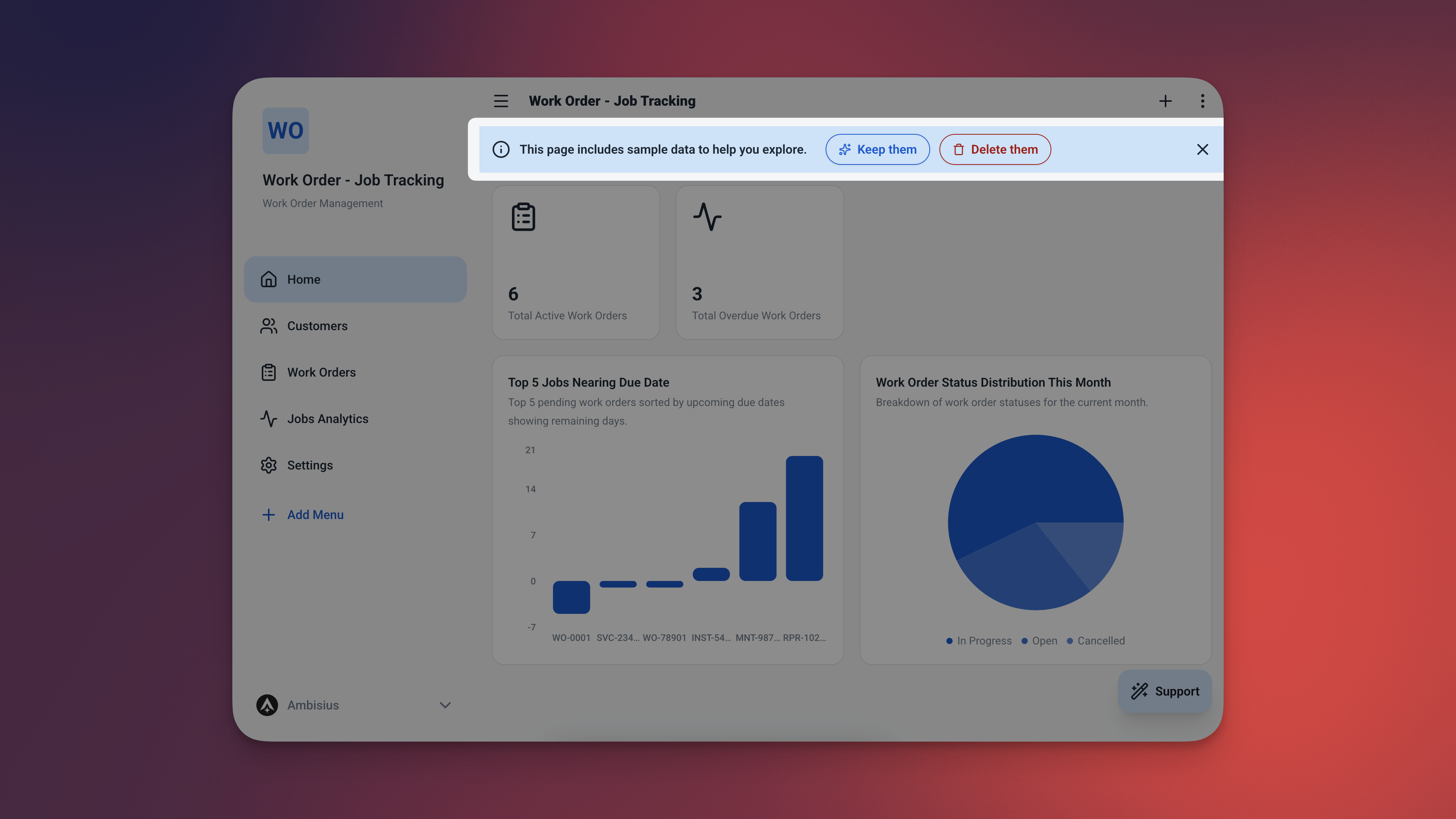
Find the Work Order & Job Tracking template in the catalogue — one tap duplicates the full app into your account.
-
1Find the templateBrowse the Ambisius template catalogue and select the Work Order & Job Tracking template. It's free — no payment details needed.
-
2Activate with one tapOne tap duplicates the full app into your account — tables, dashboard, analytics, and all automation rules included. Everything is already configured.
-
3Start logging jobsAdd your first customers and create your first work order. The app assigns the job number, starts the clock, and handles the rest — automatically.
Need Something Extra? Just Ask.
The template works out of the box — but if your business needs a little more, describe it in the chat and the AI makes the change.
| What to Ask For | What It Does |
|---|---|
| "Add a description field to work orders" | Capture detailed job notes or customer instructions |
| "Add a technician field to work orders" | Assign each job to a specific staff member |
| "Add a parts cost field" | Track material costs separately from labour |
| "Add a pickup date field" | Record when the customer collects their item |
Exploring the app and chatting with the AI costs nothing. Credits are only used when you confirm a change to the app.
Frequently Asked Questions
-
Can I use this template for free?Yes. The Work Order & Job Tracking template is free to activate. Exploring and chatting with the AI costs nothing — credits are only used when you confirm a change to the app.
-
How does the app know a job is overdue?The app checks two things: whether the due date has passed, and whether the job status is still Open or In Progress. If both are true, the job is automatically flagged as overdue — no manual review needed.
-
Can I assign jobs to different technicians?Not out of the box — but it takes one chat message to add it. Just ask: "Add a technician field to work orders" and the AI sets it up for you.
-
What happens when I mark a job as Completed?The overdue flag clears automatically — a Completed job is never marked as overdue, even if the due date has passed. The actual cost is also included in your revenue analytics from that point on.
-
Can my staff use this app on their phones?Yes. Ambisius works on iOS, Android, tablet, and any desktop browser. Every team member gets the same app on whatever device they use.
-
Can I track revenue from completed jobs?Yes. The analytics page shows total revenue — the sum of actual costs from all Completed work orders. Filter by date range to see revenue for any period.
Every Job. Tracked. From Open to Done.
Losing track of jobs doesn't just cost you time — it costs you customers. The Ambisius Work Order & Job Tracking template gives you a proper system: auto-generated job numbers, automatic overdue detection, and a dashboard that tells you exactly what needs attention the moment you open the app.
Free. Ready in minutes. Works on every device your team uses.
